
Switching / rescheduling your class
How to switch your scheduled class to a new date or location through your CBD College Student Portal. The whole process takes about 5 minutes.
Note — this process works much better on a laptop or desktop. If possible, use a laptop or desktop computer — not a phone or tablet.
Important — please read before you start
This is a self-service process. CBD College does not reschedule students over the phone, by email, live chat or student messaging. A fee applies, depending on how far out from your scheduled class date you switch.
How to switch your class
Four short parts, twelve simple steps — follow them in order and use the screenshots to find the right buttons in your portal.
Part 1 — Get to the switch screen
Log in to your Student Portal
Visit the Student Portal and log in using your email address as your username.
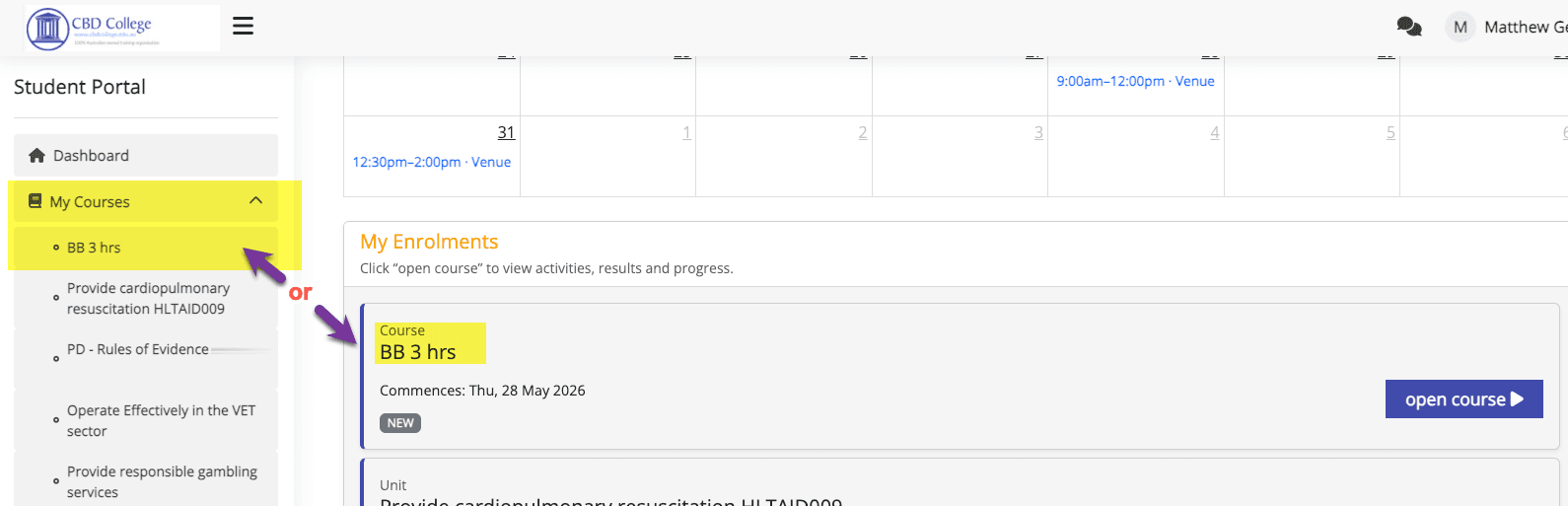
Find and open the course
From your dashboard, locate the course you want to reschedule. Click My Courses in the left-hand menu, or click open course next to the unit under My Enrolments.
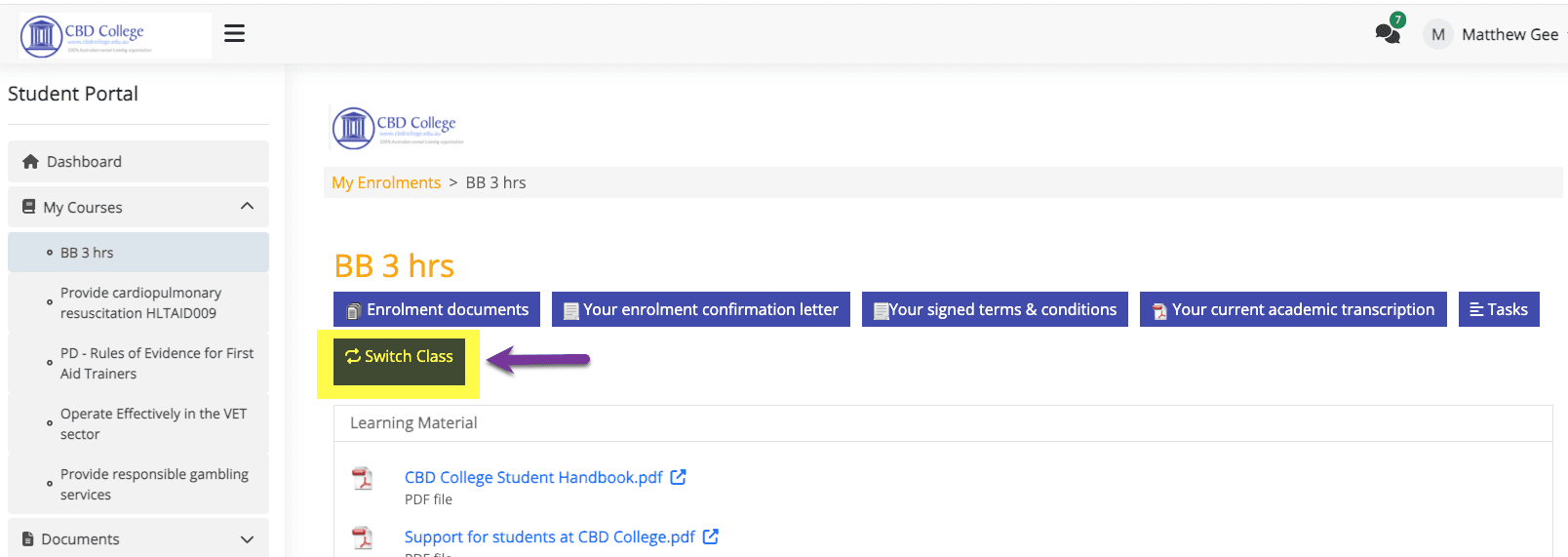
Select 'Switch Class'
Inside the course, look across the row of action buttons at the top of the page and click Switch Class to begin.
Part 2 — Choose your new date
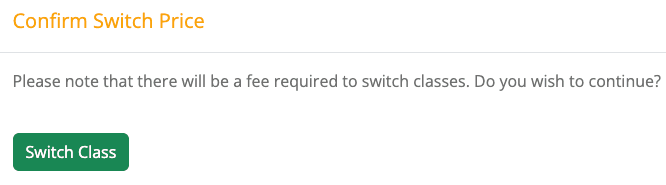
Confirm the fee applies
A notice will appear confirming that switching classes attracts a fee. Click Switch Class to acknowledge this and continue.
Filter by postcode and date
Enter the postcode of the training room and your preferred date range to filter the available classes, then click Search.
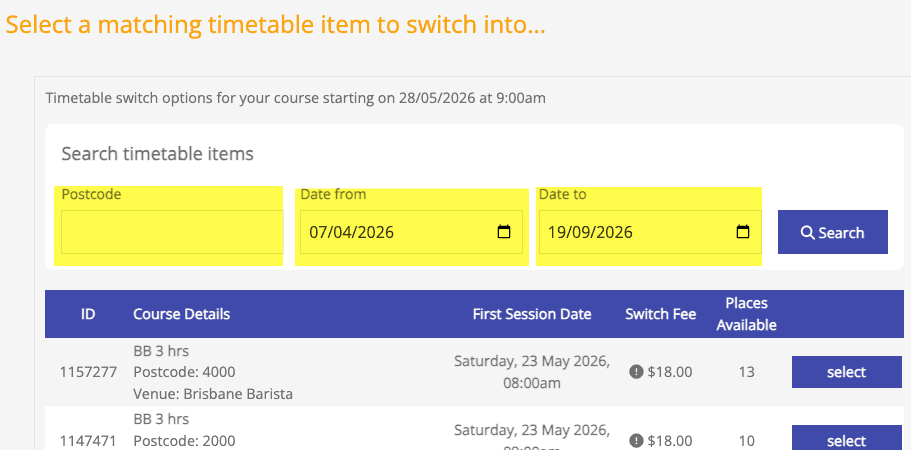
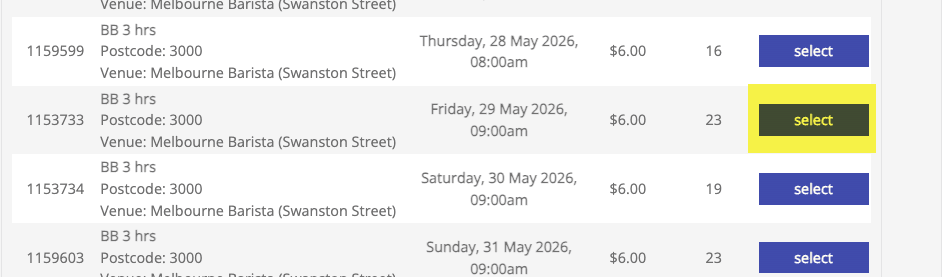
Select your new class date
Browse the results and click select next to your preferred new class date and location.
Part 3 — Pay the switching fee
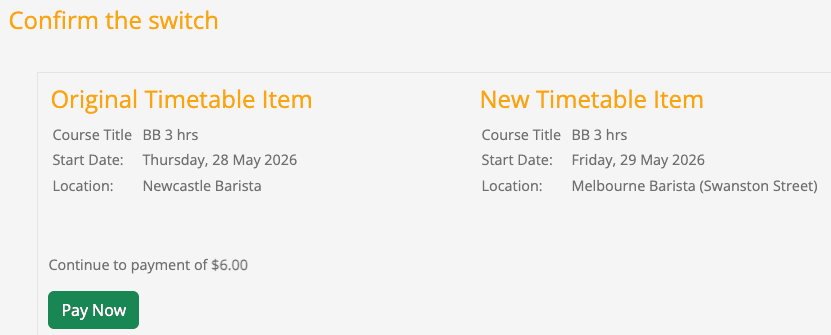
Confirm the date and price
Review the Original Timetable Item against the New Timetable Item to make sure the date, location and switching fee are correct, then click Pay Now.
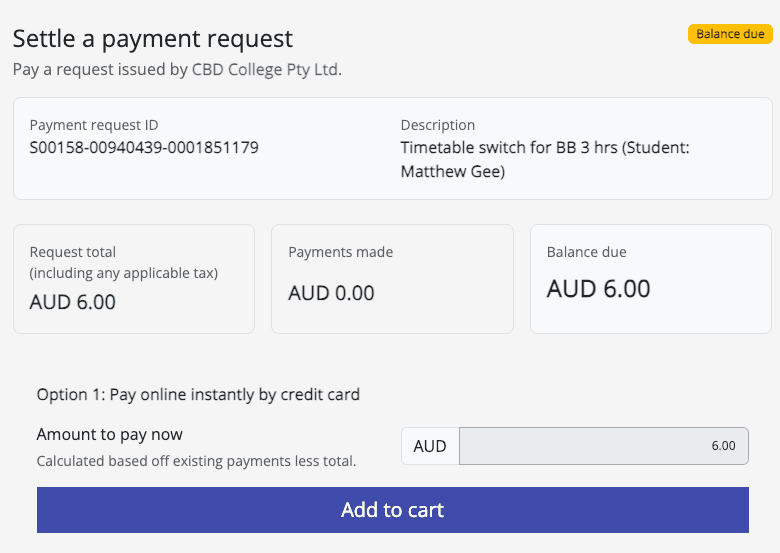
Enter your payment details
On the Settle A Payment Request page, confirm the amount you wish to pay and click Add to cart.
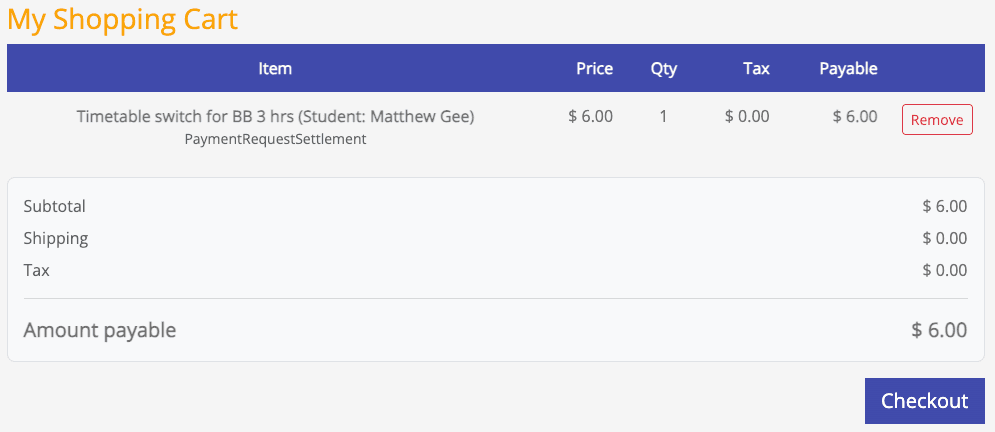
Proceed to checkout
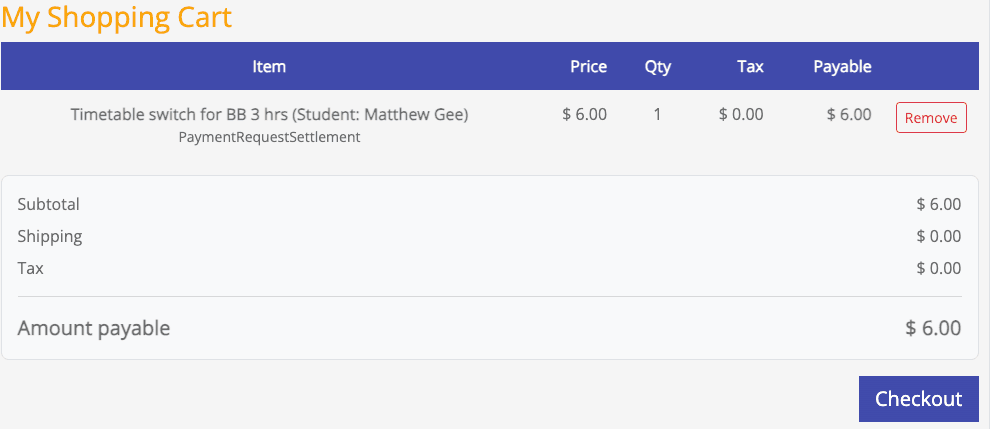
Review your shopping cart and click Checkout to advance to the payment confirmation screen.
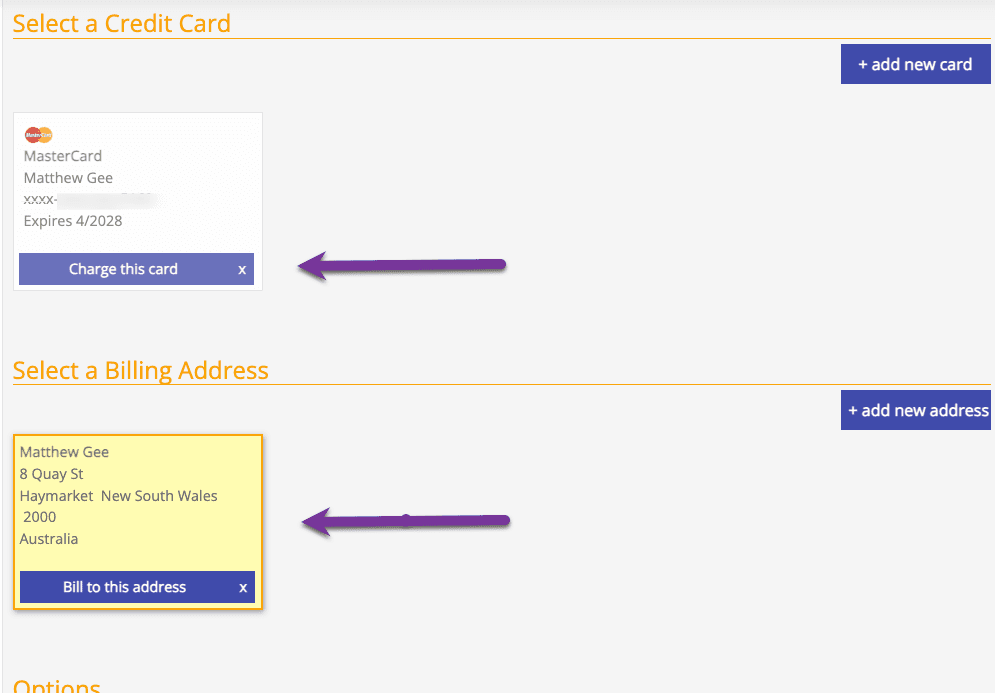
Confirm your card and billing address
Important: you must click both Charge this card and Bill to this address before continuing.
Complete checkout
Click Checkout to finalise and process your payment with your credit card.
Part 4 — Confirm it worked
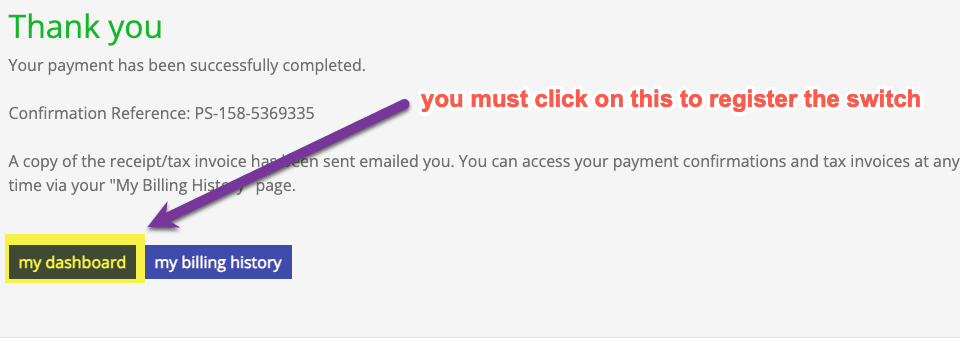
Check your dashboard
On the confirmation screen, click my dashboard to register the switch, then verify your new class date is showing. Don't exit until you see the “Switch Completed” confirmation.
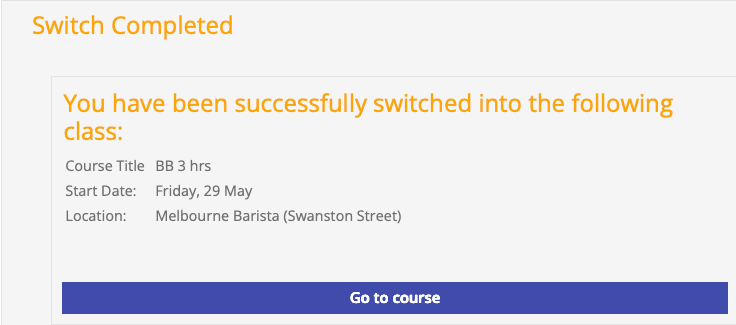
All done!
Your new class will appear under My Enrolments in your Student Portal. A receipt/tax invoice is emailed to you and is available any time from your My Billing History page.
Things to know
Why is there a fee?▾
When you book a class, a place is reserved for you. Switching incurs an administration fee covering the rebooking and the costs of your original class. The amount depends on how far out from your scheduled class date you switch.
Can I switch to a different city or campus?▾
Yes — at Step 5, enter the postcode of the campus you'd like to attend instead, and the available classes at that location will appear.
What if I forgot my login details?▾
Use the Forgot Password link on the portal login screen. Your username is the email address you enrolled with.
Can I switch the day before my class?▾
The Switch Class function is generally available right up until your class start time, but replacement classes are subject to seats being open — switch as early as possible.
Need a hand?
If you're having trouble logging in or can't find the Switch Class button, our team is happy to help with the technical side.